ATOMFALL Interactive Map: Find Loot and Explore Areas
Use the ATOMFALL interactive map to locate collectibles, dig spots, and supplies. Learn how MapGenie and mapmaster.io filters help plan your exploration.
Jump to
Where to Find an ATOMFALL interactive map
A promising scavenging trip can turn into aimless wandering when you lose track of what you came to find. An ATOMFALL interactive map helps you locate collectibles, supplies, and landmarks while keeping your exploration focused. With an ATOMFALL interactive map open alongside the game, you can narrow the displayed markers to the things you actually want to investigate.
Two options are MapGenie and mapmaster.io. MapGenie’s Atomfall index lists a Northern England map and several collectible guides. Both maps have area selectors, category filters, and zoom controls.
These are third-party map resources. For the game’s official description, see Atomfall’s Steam listing from Rebellion, which explains its emphasis on scavenging, crafting, bartering, and investigating a fictional British quarantine zone.
| Map resource | Map features | Usage |
|---|---|---|
| MapGenie | Northern England map, collectible guides, and a 100% Checklist | MapGenie’s Atomfall index |
| MapGenie map interface | Area selection, marker filters, and zoom controls | Using the maps |
| mapmaster.io | Atomfall maps and guides, area switching, category filters, and zoom controls | Using the maps |
These tools let you explore mapped information. Neither service is confirmed to contain every current location or cover every expansion. Before relying on a map for a particular area, check what that website actually lists.
How to Use the MapGenie Atomfall Map
Start with MapGenie’s Atomfall maps and collectible guides. Its index links to Northern England and includes guides for Landmarks, Locations, Leads, Findings, Dig Spots, Comics, Lunchboxes, Recipes, Visitor Pamphlets, Training Stimulants, Atomic Batteries, Manuals, and Weapons.
That list gives you a useful starting point: decide what you are looking for before opening a crowded map.
Open Atomfall through MapGenie’s game search, select its map, and use the left-side controls to change areas and toggle markers. It also shows that an entire collectible group or an individual type, such as Lunchboxes, can be toggled.
| Step | Map Action | Purpose |
|---|---|---|
| Open Atomfall | Search for the game on MapGenie and select its entry | Reach the game’s maps and guides |
| Open the map | Select the Atomfall map | View the mapped locations |
| Select an area | Use the area controls on the left | Focus on the area you want to inspect |
| Adjust filters | Toggle groups or individual marker types | Control which markers appear |
| Adjust zoom | Use the displayed zoom controls | Inspect the map at a useful scale |
Hide categories unrelated to your current objective. If you are looking for Lunchboxes, leave that category visible while hiding other collectibles. Filtering makes the display easier to read.
The ATOMFALL interactive map can also support a broader scavenging plan. For example, you could inspect Weapons and Recipes separately, then compare their displayed locations with the area you intend to explore. Keep each search focused enough that you can distinguish the relevant markers.
The map index includes a 100% Checklist. Treat the listing as a resource to inspect rather than assuming a particular progress-saving feature is available.
How to Navigate mapmaster.io
The second website demonstrated is mapmaster.io’s game map directory. The ATOMFALL interface includes maps, guides, area selectors, and marker category controls.
Search for ATOMFALL, open a map, switch maps through the selector near the upper-left corner, and toggle categories including investigations, locations, and items. It also shows individual item filters.
The same player demonstration shows two ways to zoom: the mouse wheel and the on-screen plus/minus controls near the lower-right corner. Those instructions come from the recorded interface; the placement of controls may differ if the website changes.
Use a similar filter setup when comparing the two services. Select the corresponding area, then display the same kind of location or collectible where available. That gives you a clearer comparison than viewing one map with every marker enabled and another with only items visible.
Avoid treating different category names as automatic equivalents. One map lists Leads and Findings; the other has investigations.
Use the demonstration for website navigation; it is not enough to establish where every playthrough begins or how an area becomes accessible.
For your ATOMFALL interactive map setup, the practical question is whether you can locate the relevant area and filter the information you need. Neither service is confirmed to be more accurate or complete than the other.
Choose Filters That Match Your Objective
A map becomes more useful when its visible information matches a specific question. “Where should I look for a Lunchbox?” is easier to act on than “What does this entire region contain?”
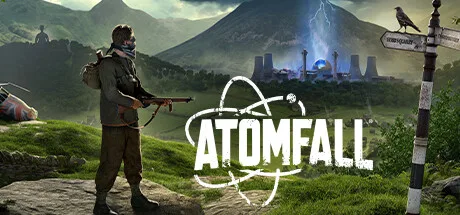 Image: Steam / Rebellion
MapGenie’s index provides a concrete set of categories to explore. The following table groups those listed categories into possible search goals. These are optional ways to organize a map session, not descriptions of item effects or progression requirements.
| Your search goal | Categories listed by MapGenie | Suggested approach |
|---|---|---|
| Find reference points | Landmarks, Locations | Compare the displayed locations with the area you are exploring |
| Follow an investigation | Leads, Findings | Show the relevant category when looking for information |
| Look for buried discoveries | Dig Spots | Pair map inspection with the game’s metal-detector exploration |
| Search for collectibles | Comics, Lunchboxes, Visitor Pamphlets | Display one collectible type at a time |
| Locate listed items | Recipes, Training Stimulants, Atomic Batteries, Manuals, Weapons | Select the item category relevant to your search |
Collectibles: Keep the Search Specific
Comics, Lunchboxes, and Visitor Pamphlets all appear in MapGenie’s guide index. Show the category you want to search for by itself before deciding where to explore.
This keeps unrelated icons from competing for your attention. It also helps you return to a clear question after a detour: you are looking for a particular collectible type, rather than trying to interpret every marker at once.
Check the map itself for location information instead of relying on an unsupported completion count.
Dig Spots: Connect the Map With Exploration
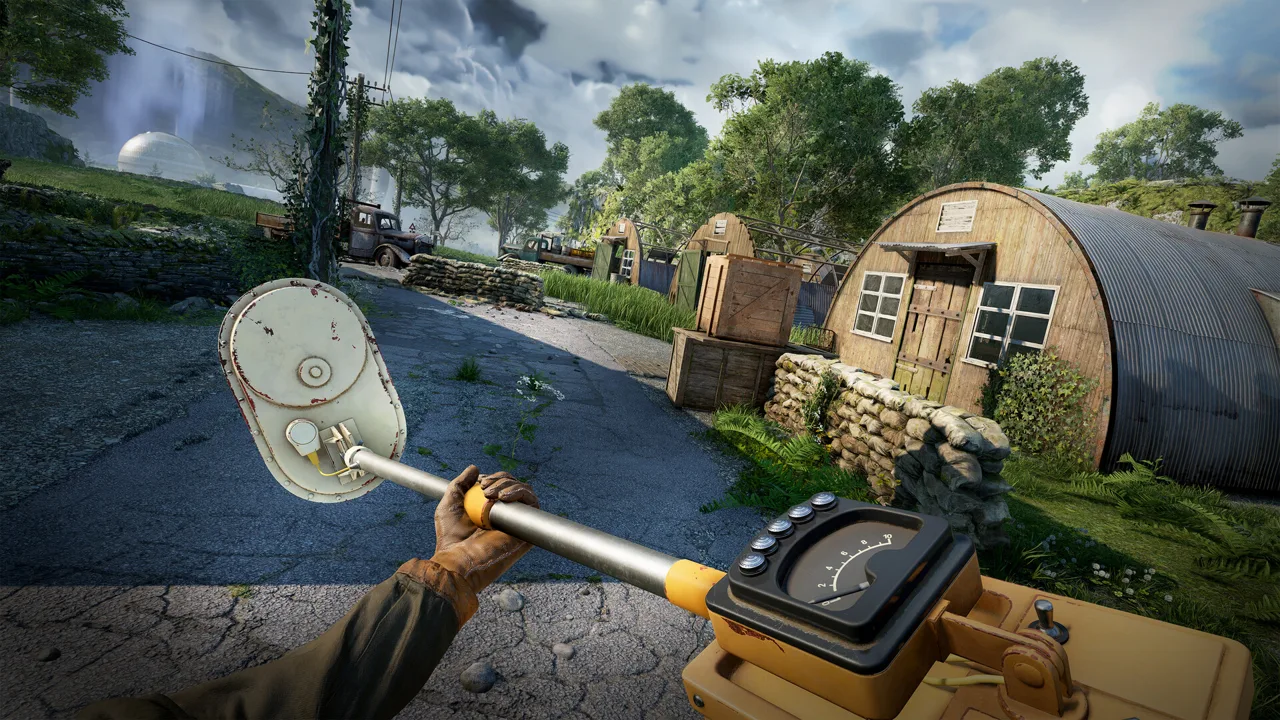
Rebellion’s official game description explains that a metal detector can uncover hidden treasures. MapGenie separately lists Dig Spots among its Atomfall guides.
Inspect that category when you want to plan metal-detector exploration. Once you are in the game, keep paying attention to its own cues and the surrounding environment.
Use a marker as a location reference.
Items and Investigations: Avoid Assuming Effects
Recipes, Manuals, Training Stimulants, Atomic Batteries, and Weapons are listed categories. An item’s presence on an index does not tell you what it does, where it is required, or whether you need it for a particular objective.
Leads and Findings fit ATOMFALL’s investigative premise.
Select these filters in response to something you are already investigating. That keeps the map connected to your current questions without turning an unexplained marker into an assumed requirement.
Build a Focused Exploration Routine
Atomfall’s official description emphasizes scarce weapons and ammunition, scavenging, and encounters across villages, caves, ruins, and bunkers. A useful map routine should support those activities while leaving room to observe the game world.
Start with one objective and one area. Then use the available filters to inspect relevant markers. You can broaden the search later if your original question remains unanswered.
| Exploration stage | Suggested map action | What to consider |
|---|---|---|
| Before setting out | Select the relevant area and marker category | What are you trying to find? |
| While comparing locations | Zoom between nearby markers and the surrounding map | Which locations fit your intended direction? |
| During a detour | Revisit the area and filter selection | Has your search goal changed? |
| After finding something | Keep a separate note if needed | What have you personally confirmed? |
| Before exploring another area | Check its available map coverage | Does the resource show the information you need? |
These are planning suggestions, not a verified walkthrough.
Use the Map Without Revealing Every Discovery
An ATOMFALL interactive map can expose locations you have not discovered through play. Keep Leads, Findings, or investigation markers hidden until you need help to preserve the investigative experience.
You can still use a narrower category, such as Lunchboxes or Locations, for a specific search. Use the filters to display only the categories you need.
Treat a Marker as a Starting Point
Rebellion describes exploration across caves, bunkers, and other varied environments. A map icon alone cannot explain the full approach to every destination.
If a location is unclear, compare the selected area with what you see in the game. Avoid assuming that proximity on the map guarantees a direct or safe route.
Keep Your Own Confirmed Notes
Keep a brief personal list of discoveries if you need to track them across sessions.
Record only what you have confirmed. Use your ATOMFALL interactive map alongside your own observations.
FAQ
Where can I find an ATOMFALL interactive map?
MapGenie has an Atomfall index linking to its Northern England map and collectible guides. You can also use Atomfall maps on mapmaster.io. Both are third-party resources.
Can I hide everything except Lunchboxes?
Yes, you can toggle individual collectible types on MapGenie, including Lunchboxes. Hide unrelated categories, then leave Lunchboxes displayed for that search.
Does an interactive map automatically track my game progress?
MapGenie offers a 100% Checklist; saving behavior and account requirements are unspecified.
Do these maps cover Wicked Isle and The Red Strain?
Both expansions are included on Steam. Check each service’s area selector and available maps before relying on it for expansion exploration.
Continue with
 ATOMFALL Rapid Travel Network Locations Map: All 6 StopsUse the ATOMFALL rapid travel network locations map to find six hatches, check coordinates, and learn how to unlock routes across the quarantine zone.
More in Locations
ATOMFALL Casterfell Woods: Loot, Keys & Battery Guide
Explore ATOMFALL casterfell woods for training stimulants, batteries, weapon loot, and key locations. Plan your route through bunkers, the dam, and ruins.
ATOMFALL Data Store Alpha: How to Restore Power Safely
Restore power to ATOMFALL data store alpha with clear routes, Atomic Battery steps, and Strange Tonic tips to survive infection and reach the generator.
ATOMFALL Skethermoor Guide: Secrets, Weapons and Loot
Explore ATOMFALL skethermoor with a guide to hidden loot, Training Stimulants, gun oil, prison routes, and weapons. Plan your trip past Protocol patrols.

ATOMFALL the Interchange: Power, Doors & Oberon Guide
Explore ATOMFALL the interchange with a guide to every entrance, atomic batteries, four data stores, and the Signal Redirector puzzle that opens Oberon.
Join the community
Official channels for news, updates and player help: